
Good to know: This guide is written for you, the client. Your firm's name appears on every page of your site in place of "your firm" here. Some features only appear if your firm uses them, such as card payments or automated Auto-Pay.
Table of contents
- Getting in for the first time
- Signing in & verification codes
- Getting around on desktop and mobile
- Client Dashboard: What your firm needs from you
- Help: Quick answers and the floating help button
- To-dos across all your projects
- Your projects: The 3-column quiet card grid
- Inside a project: "For you on this project" hairline list
- Docs & Files: Uploading and downloading
- Approvals: Giving your official OK
- Signing documents (Engagement letters & 8879s)
- Bills: What you owe & Auto-Pay
- Account page: "Papers to keep" & details
- One login for several households or businesses
Getting in for the first time
Your firm sends you a private email invitation. You cannot sign up by yourself—only your accountant can create an invitation for your email address.
The email subject reads "[Your firm] set up a private client site for you". It comes from your firm's name, and if you reply directly to the email, the reply goes straight to your firm.
How to accept your invitation
- Open the invitation email.
- Click Set my password (or copy the fallback link provided under "Or paste this link into your browser").
- Check that your email address is correct.
- Enter a password in Password (at least 12 characters). A short sentence you will easily remember works best.
- Re-enter it in Confirm password and click Accept invitation.
You are immediately signed in and taken to your Client Dashboard. A green welcome banner confirms you are set up.
Important: Invitation links remain valid for 24 hours. If your invitation has expired, ask your firm to trigger a fresh invitation link.
Signing in & verification codes
To sign in at any time, visit app.cparelay.com/signin, enter your email and password, and click Sign in.
If your firm or account has two-factor email verification enabled, CPA Relay emails you a 6-digit code. Enter the code within 10 minutes to verify your identity.
Getting around on desktop and mobile
The top navigation bar provides clear links to the five main sections of your client portal:
| Section | What's there |
|---|---|
| Client Dashboard | Your active projects, open items needing your attention, and outstanding bills in three calm cards. |
| To-dos | Everything waiting on you across all your projects, organized chronologically by urgency. |
| Projects | Individual workspaces for each tax year or job, with messages, files, and milestones. |
| Bills | Outstanding balances, invoice line breakdowns, and payment options. |
| Account | Your contact details, profile change requests, and your permanent "Papers to keep" document archive. |
Mobile bottom tab bar
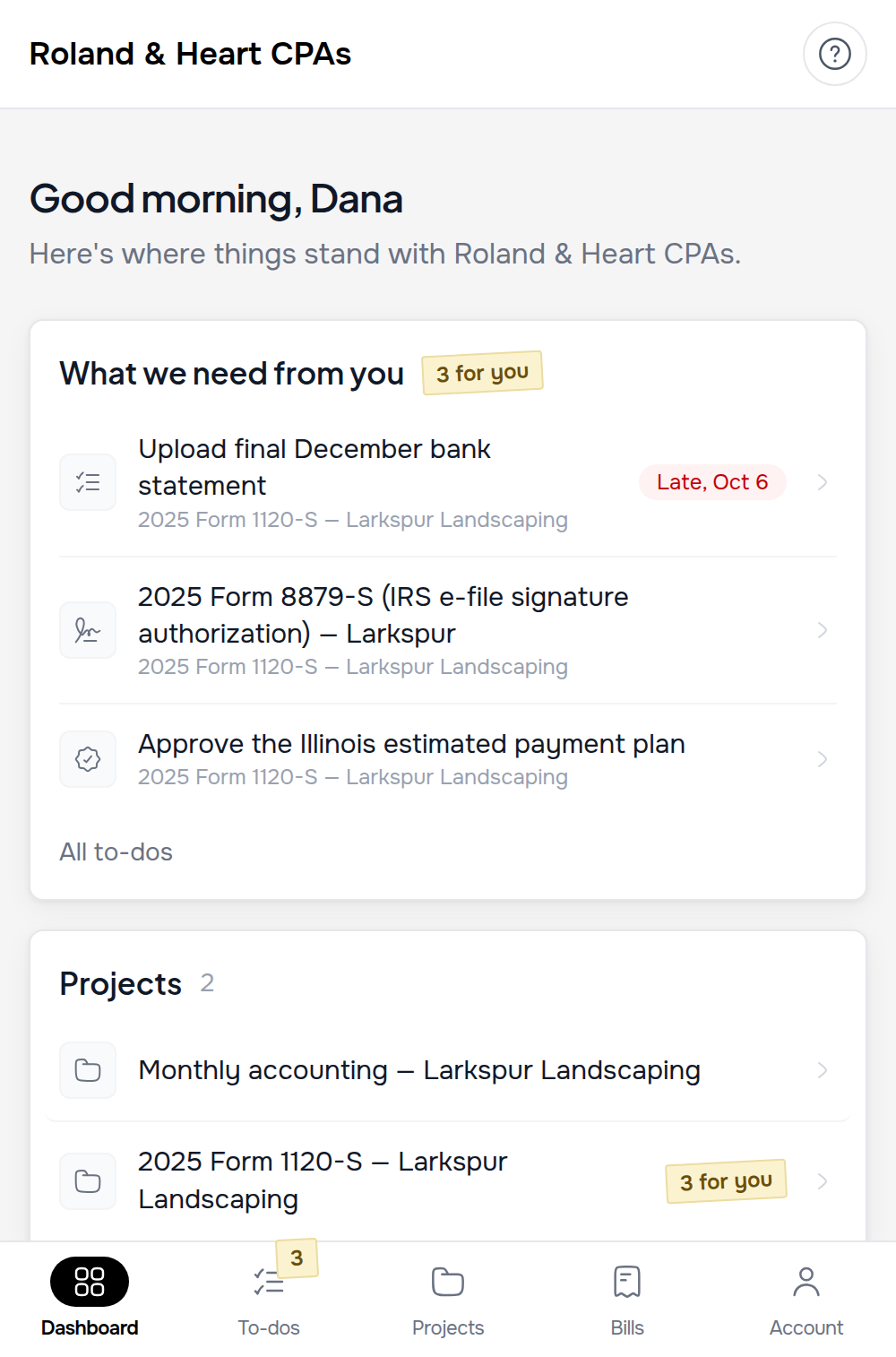
On smartphones and narrow screens, navigation shifts to a fixed bottom tab bar with 5 tabs: Dashboard, To-dos (with an attention badge counting pending tasks), Projects, Bills, and Account.
Client Dashboard: What your firm needs from you
The Client Dashboard is the home screen of your private portal. It is specifically designed to answer one question: "Is there anything I need to do right now?"
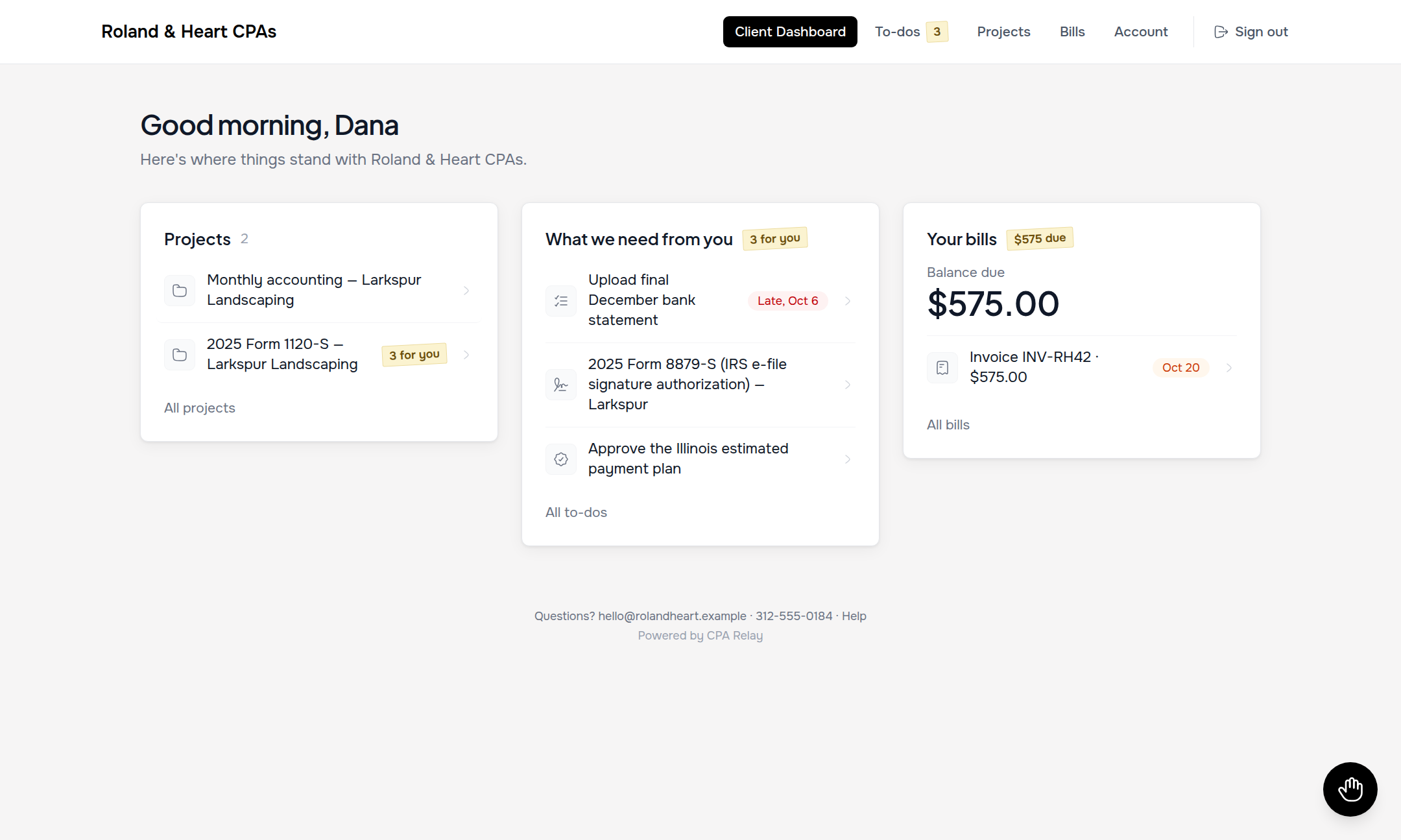
Your work is organized into three quiet cards:
- Projects: Shows your active jobs (e.g., "2025 Individual Tax Return"). When a project needs your input, a muted tag like 3 for you sits beside it.
- What we need from you: Everything waiting on your action—requested documents, tax forms to sign, and draft returns to approve. Overdue items are badged in red. When finished, a green checkmark reads: "All done. There's nothing we need from you right now."
- Your bills: Displays your balance due in large, clear figures, open invoices with due dates, and your Auto-Pay status.
Help: Quick answers and the floating help button
Every screen includes a round floating Help button (bottom right on desktop, top right in the header on mobile). Clicking it opens a friendly 4-step quick guide:
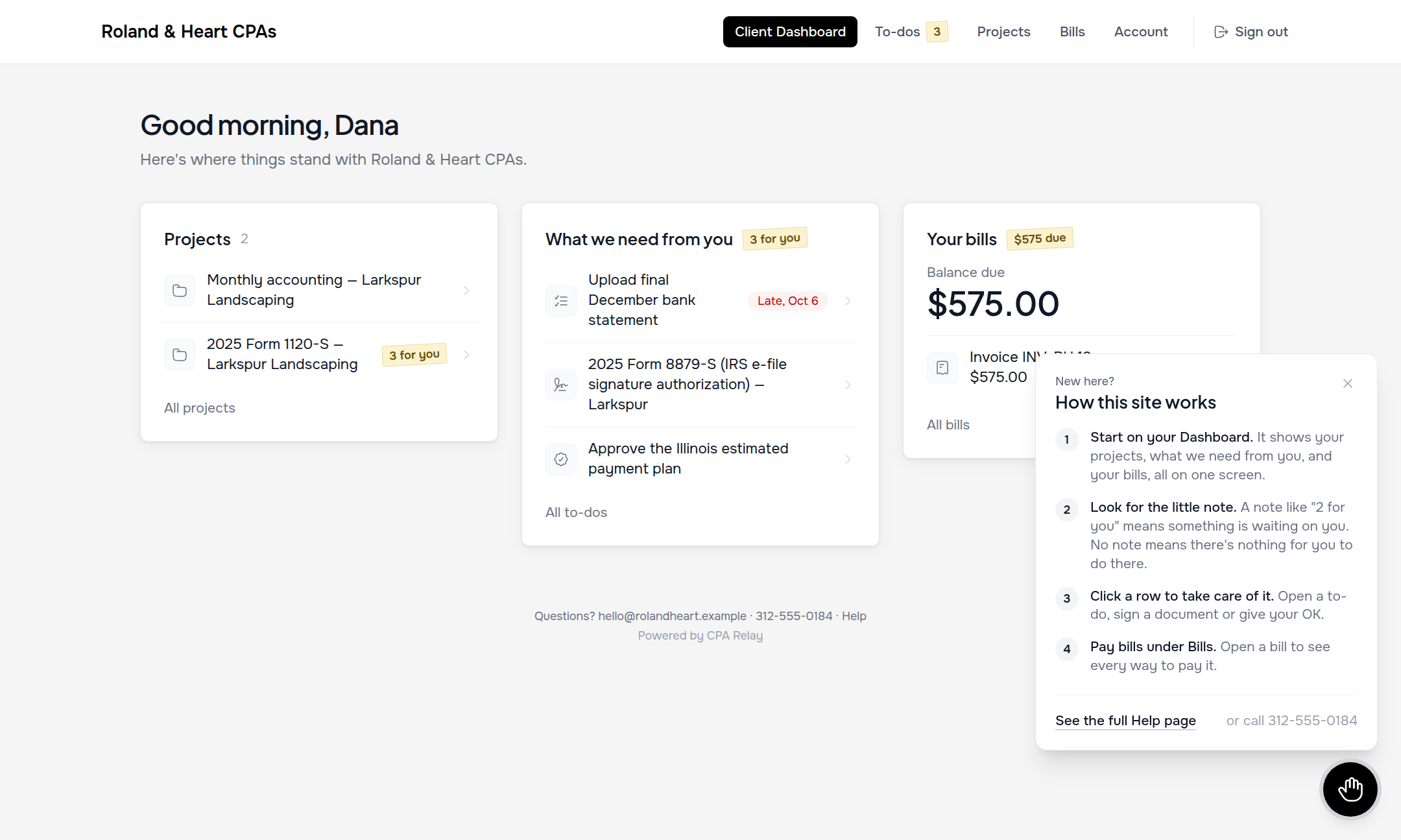
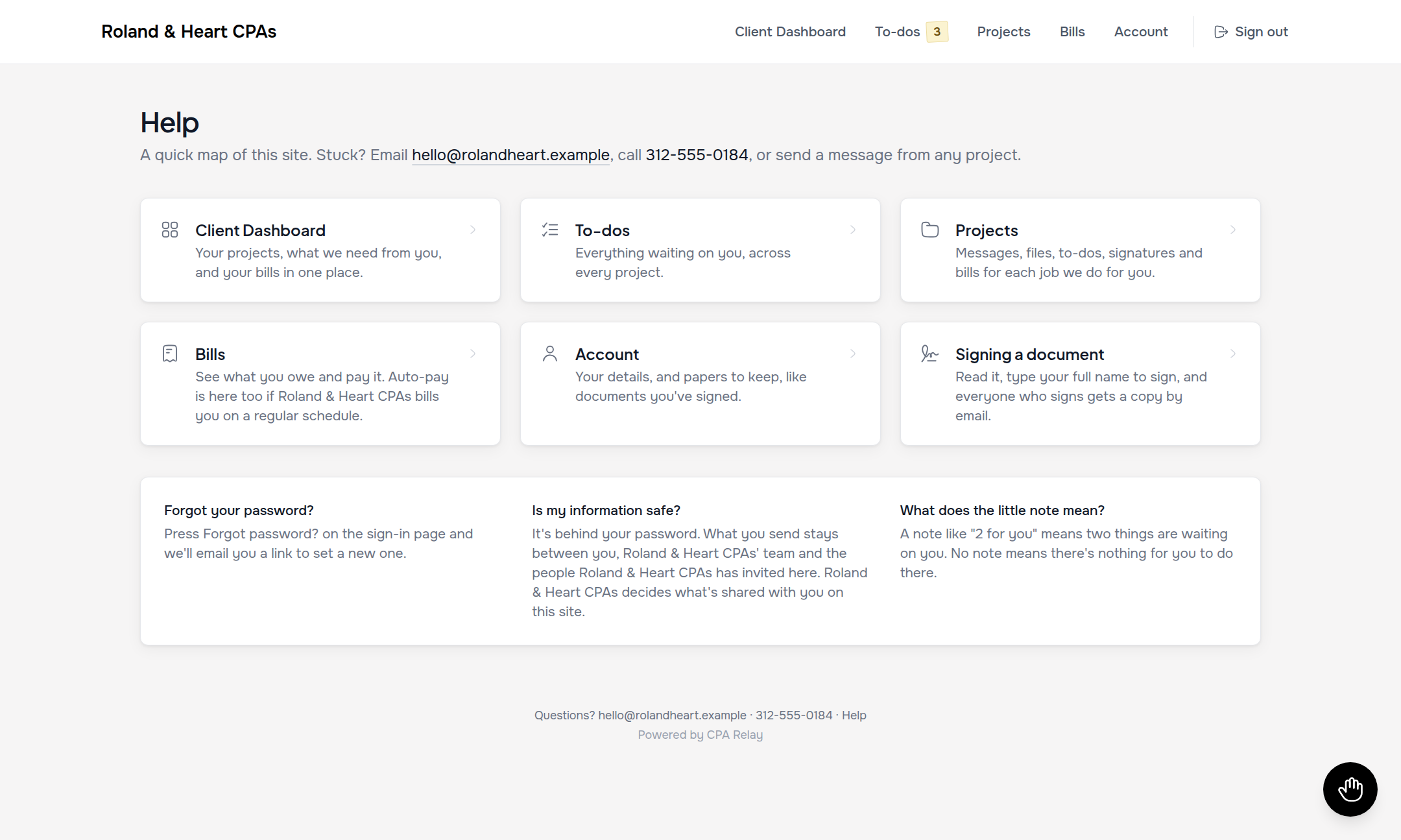
Clicking See the full Help page opens /my/help, offering section guides and quick answers to common questions about password resets, file upload formats, and multi-factor authentication.
To-dos across all your projects
Clicking To-dos in the navigation opens a centralized list of everything waiting on you across all your engagements.
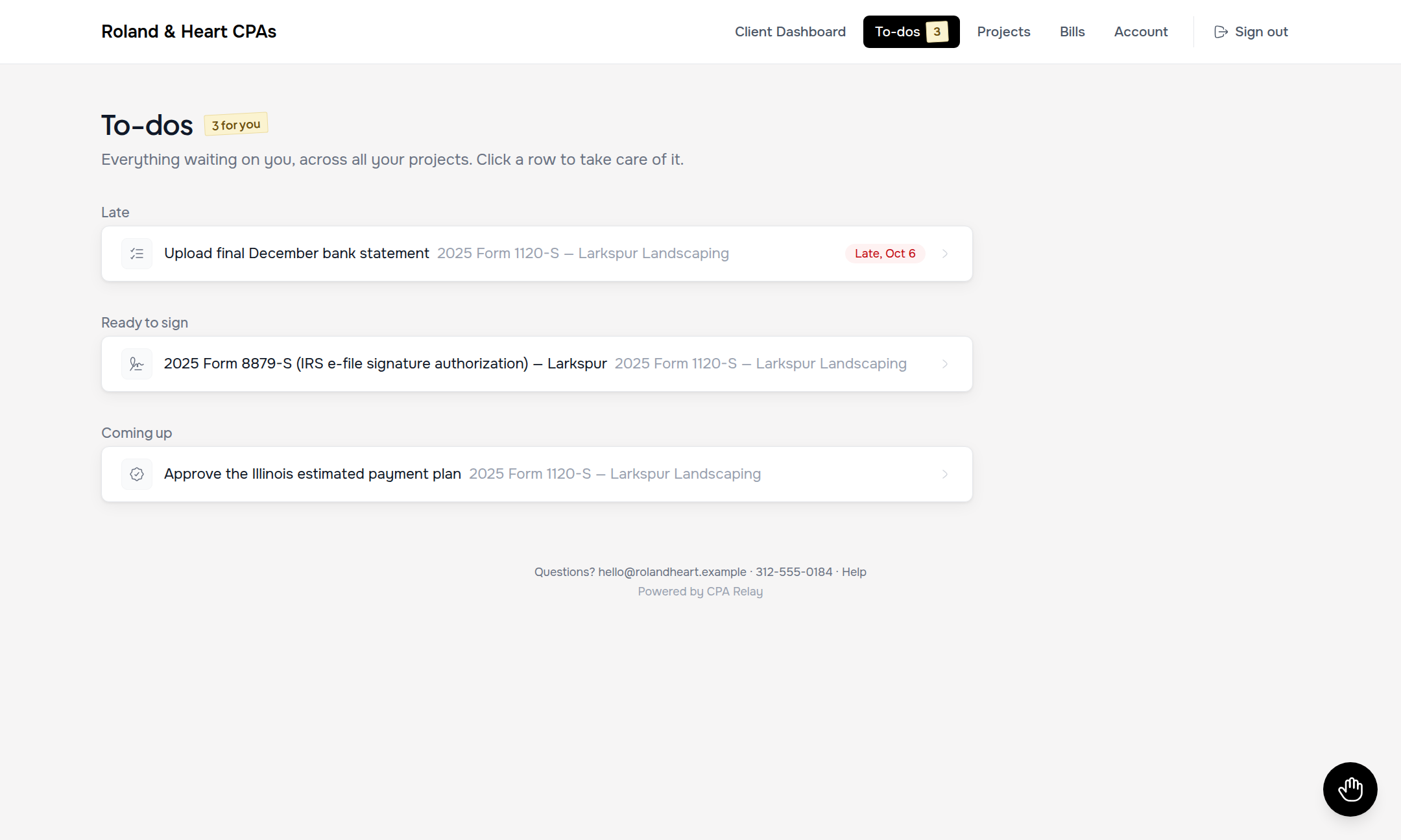
To-dos are chronologically grouped:
- Late (Red): Overdue items requiring immediate attention.
- Ready to sign (Amber): Tax forms (Form 8879) and engagement letters waiting on your signature.
- Due this week: Upcoming deadlines within the next 7 days.
- Coming up: Future milestones or items with open timelines.
Your projects: The 3-column quiet card grid
A project represents one job your firm is handling for you, such as "2025 Form 1120-S — Larkspur Landscaping" or "Monthly bookkeeping". Click Projects in the top navigation (or the bottom tab bar on mobile) to view all shared engagements arranged in a quiet 3-column card grid.
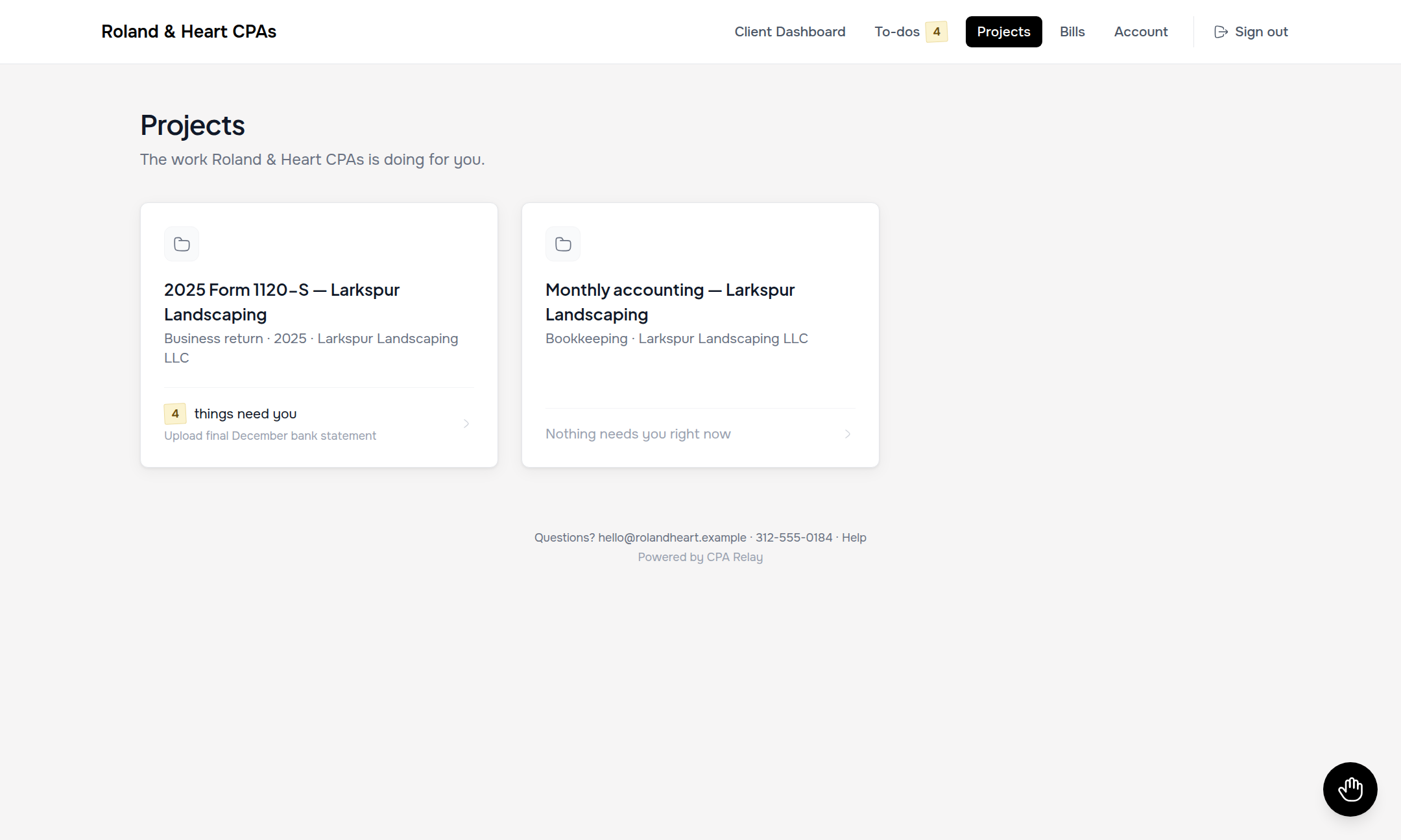
Each project card displays:
- Folder icon tile: Quick visual identification of the engagement.
- Project type & tax year: Clear labeling of the exact return or service.
- Footer attention tags & preview hints: Shows item counts (such as 4 things need you) with a preview of the earliest pending deadline, or a reassuring "Nothing needs you right now" indicator.
Clicking anywhere on a card opens that project. If your login covers multiple entities or businesses, projects are grouped neatly under each company's heading.
Inside a project: "For you on this project" hairline list
Opening a project presents a clean, focused workspace tailored to that specific job.
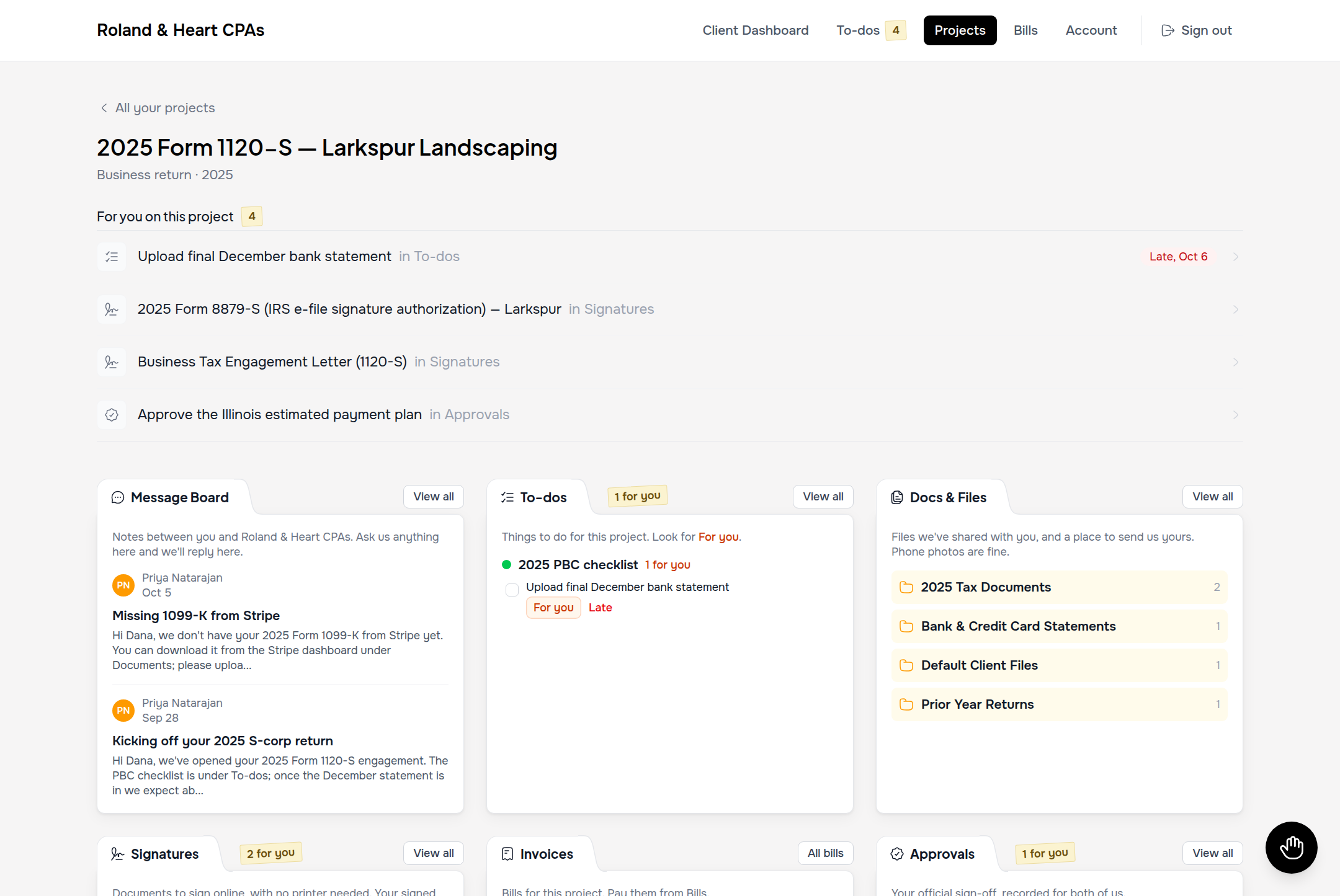
Key areas inside each project include:
- "For you on this project": A prominent hairline list bordered between two subtle rules, gathering every pending action for this engagement into one spot. A sticky-note tag on the heading shows the total count (e.g. 4).
- Origin pills: Each row clearly shows where the task originates—such as in To-dos, in Signatures, or in Approvals—along with due dates (late dates flagged in red). The entire row is a link directly to where you complete the task.
- Project tool cards: Below the priority list, six quiet tool cards organize the project's permanent assets: Message Board, To-dos, Docs & Files, Signatures, Invoices, and Approvals.
Docs & Files: Uploading and downloading
Inside any project, open Docs & Files to review documents your firm has shared or upload files requested by your CPA.
- Supported file types: PDF, images (including iPhone HEIC and camera photos), Word, Excel, CSV, text, and ZIP files.
- File size limit: Up to 50 MB per file.
- Safety: Files you upload can be downloaded anytime by you and your firm, but cannot be accidentally overwritten or deleted by third parties.
Approvals: Giving your official OK
When your firm needs your formal sign-off before e-filing a return, submitting an extension, or finalizing tax projections, they send an Approval.
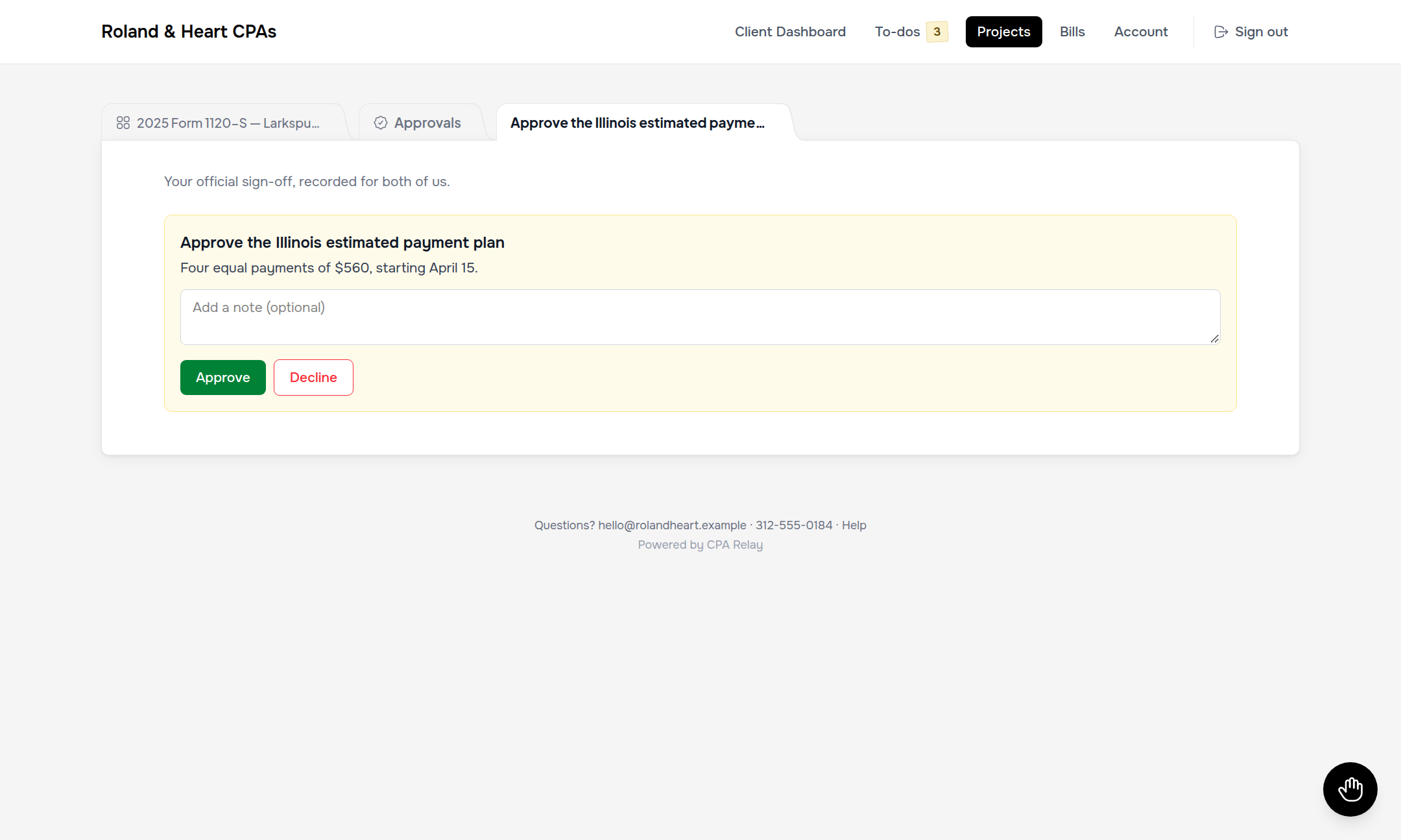
Approvals are simple: review the attached draft PDF, optionally type an instruction note, and click Approve draft or Decline or ask a question. Your decision is permanently logged in the project audit record.
Signing documents (Engagement letters & 8879s)
When your firm requests a legal signature, open the signing row directly from your Dashboard, your To-dos page, or inside the project.
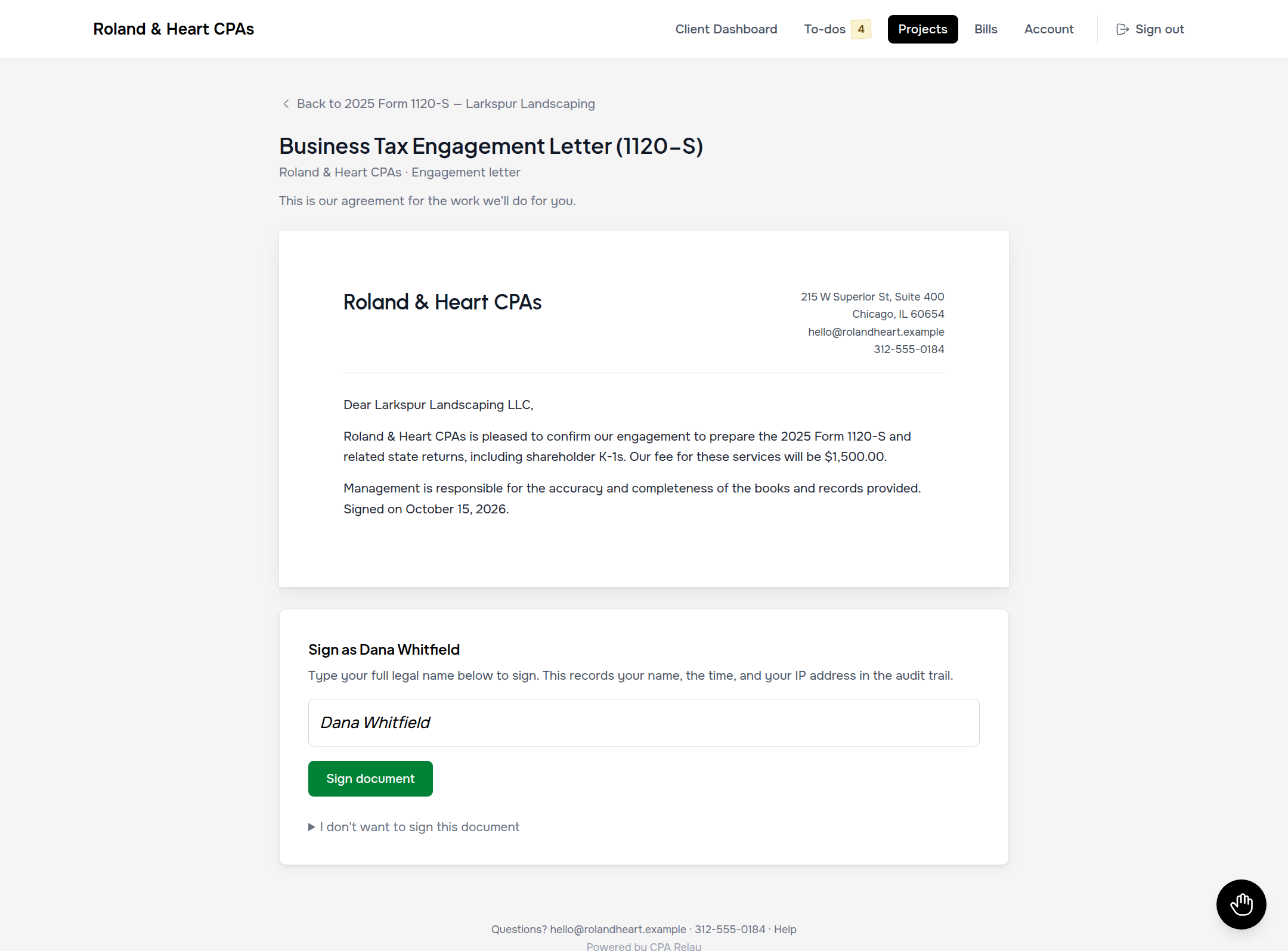
Signing from the client site is completely seamless:
- Realistic paper sheet layout: Documents render as a clean sheet of paper matching standard US Letter dimensions, complete with your firm's custom letterhead, sharp typography, and a subtle sheet shadow on desktop (edge-to-edge on phones).
- Integrated portal header navigation: Unlike third-party e-sign links that drop signers on disconnected external websites, CPA Relay keeps clients inside their familiar portal layout, with full header navigation and an immediate ← Back to [project] return link.
- Zero email OTP friction: Because you are already authenticated inside your private portal, you skip the emailed code verification step and sign directly with your full legal name.
Bills: What you owe & Auto-Pay
The Bills page provides complete transparency into open balances across all your entities.
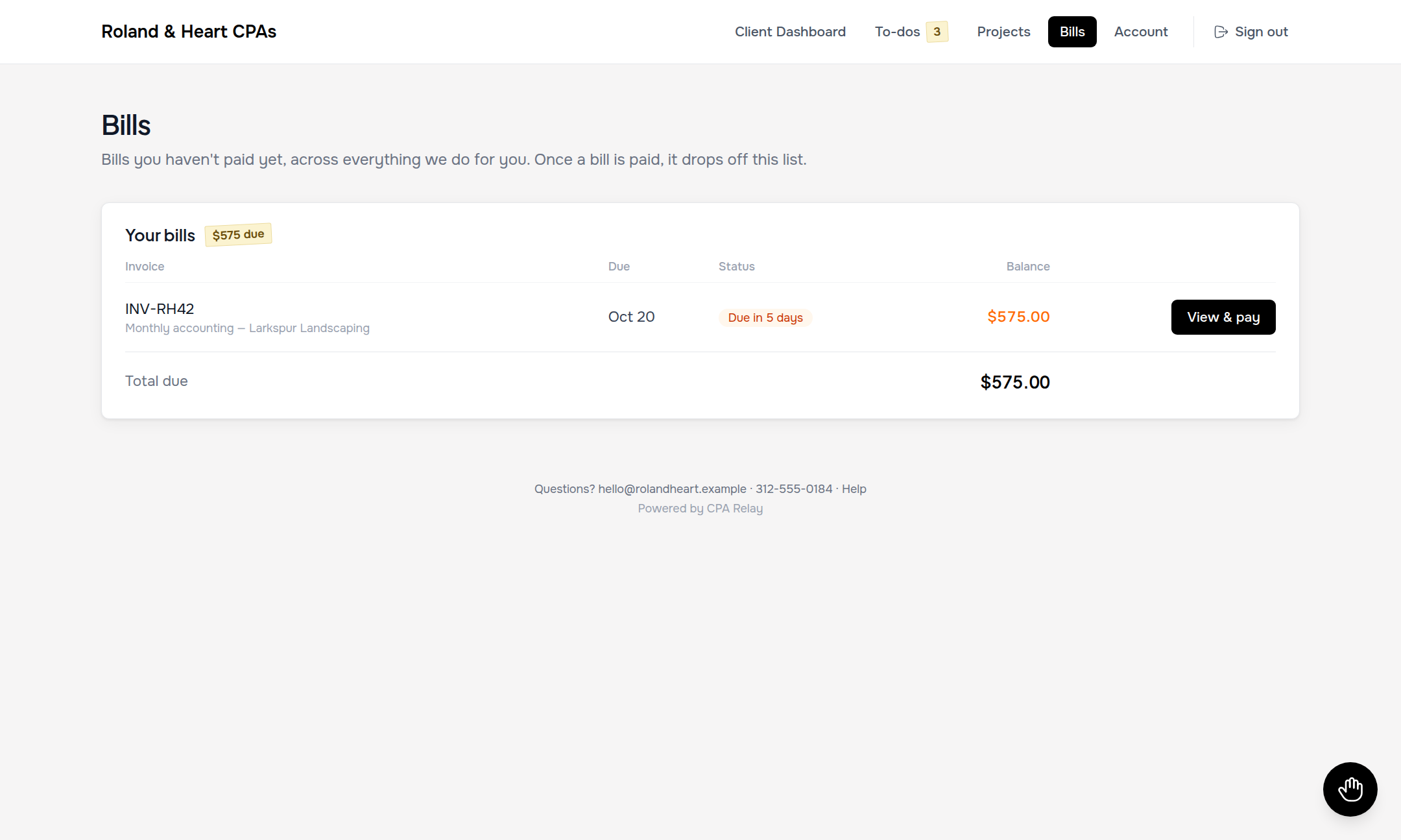
Click View & pay on any invoice to complete payment via Credit Card, ACH bank transfer, or Cash App Pay through secure Stripe processing.
For recurring advisory or bookkeeping retainers, you can toggle Auto-Pay on with a saved payment method so upcoming regular bills are paid automatically on schedule.
Account page: "Papers to keep" & details
The Account page houses your permanent profile and document vault:
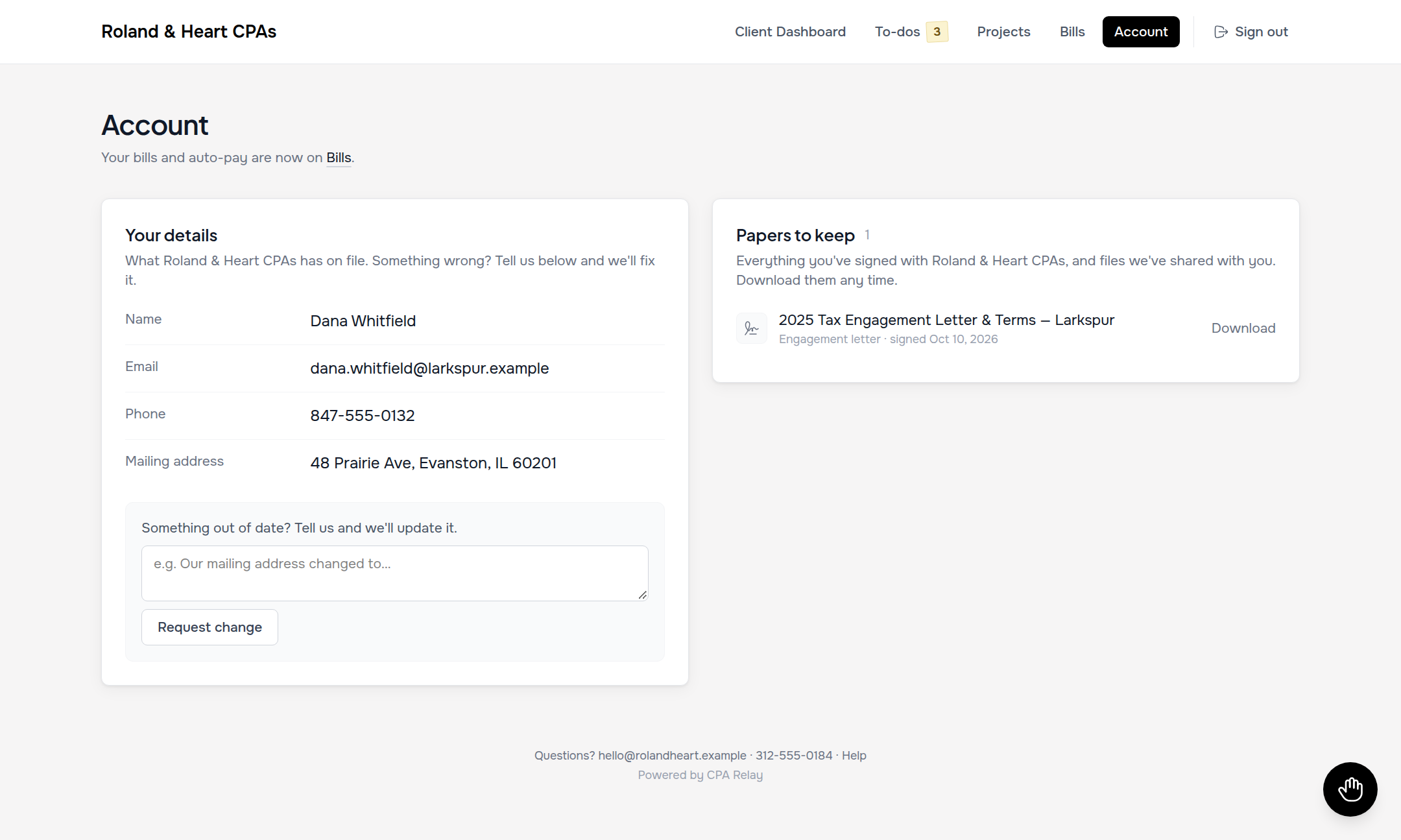
- Papers to keep: Every signed engagement letter, Form 8879, and published tax return is permanently stored here for instant download whenever your bank or mortgage lender asks for copies.
- Profile change requests: If your address or phone number changes, submit a change request. Your firm reviews and verifies it before updating records, protecting your tax files from unauthorized alterations.
One login for several households or businesses
If you own multiple businesses or manage filings for family members, your firm can link all entities to your single email login:
- One Dashboard: Displays projects, to-dos, and invoices across all your entities together, with each entity clearly labeled.
- Unified Billing: Review and pay invoices for your personal 1040, partnership, or holding company without logging out and back in.
- Targeted Signatures: Only documents requiring your specific legal signature appear for your review.
Ready to give your clients a calm, modern client portal?
Discover how CPA Relay replaces chaotic email threads, clunky file portals, and third-party e-sign bills with one unified platform.